There may be times when you need a form field to only accept certain data. Specifically, only allow email addresses from a specific domain to be entered in the form field. We can accomplish this by using control input validation with a regular expression in a Nintex Automation Cloud (NAC) form. Form Scenario:In the example... Continue Reading →
Regular Expression to Extract All Characters Before a Specific Character in Nintex Automation Cloud Workflow
You can extract all the characters before a specific character in a string using a regular expression in a Nintex Automation Cloud (NAC) workflow. Here are the steps to follow: Insert an "Apply a Regular Expression" action into your workflow. Configure it with the following settings: Input text = Your text string (you can insert a... Continue Reading →
Allow Only Numeric Value Input in a Nintex Automation Cloud (NAC) Form
Validating data in a form is a crucial part of data collection in an automation process. You can configure a text field on a form to only accept numeric values as input. This configuration also will not allow text (alphabetic) or special characters to be entered in the form field. This post will show you... Continue Reading →
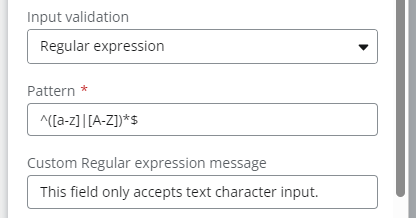
Allow Only Text Character Input in a Nintex Automation Cloud (NAC) Form
Validating data in a form is a crucial part of data collection in an automation process. You can configure a text field on a form to only accept text (alphabet) characters input. This configuration also will not allow number or special characters to be entered in the form field. This post will show you how... Continue Reading →
Regular Expression to Get the First Digit Before a Decimal Point in a Nintex Automation Cloud (NAC) Workflow
Using the "Apply a Regular Expression" action in Nintex Automation Cloud (NAC) workflow, you can get the first digit (ones digit) before a decimal point. Here are the steps to follow: Insert an "Apply a Regular Expression" action into your workflow. Configure it with the following settings: Input text = Number from a workflow variable... Continue Reading →
Regular Expression to Extract the First Part of a URL in Nintex Workflow
Using the Regular Expression action in Nintex Workflow, you can extract the first part of a URL and store it in a workflow variable to use in the rest of the workflow. Follow these steps to build out this functionality: Add a Regular Expression action to the workflow. Configure the action with the following options:... Continue Reading →
How To Restrict Numeric Data Entered to a Certain Number of Digits in a Nintex Workflow Cloud Form (NWC)
You can easily configure a form field to only accept a certain number of digits as input. This configuration also will not allow text or special characters to be entered in the form field. This post will show you how configure this in a Nintex Workflow Cloud form. This solution can be useful to validate... Continue Reading →
Validate a Single Email Address Field in a Nintex Form
I recently built a Nintex Form that included a field where the user was asked to fill in their email address. The form needed to verify that the user was entering a valid email address. This can be accomplished using a Regular Expression in the settings of the form control. Below are the steps and Regular... Continue Reading →
Get a Parameter within a URL Using a Regular Expression in Nintex Workflow
Recently had a need to extract a parameter from within a URL string using Nintex Workflow. Specifically, I needed to get the ID parameter from a URL.  In the example URL below, I needed to extract the number 987: //mysite/mypage.aspx?ID=987&User=654 Follow these steps to get the ID number: Open the Nintex Workflow designer and add a Regular... Continue Reading →
Remove Line Breaks in Text Using a Regular Expression in Nintex Workflow
You can remove line breaks in a text string using the Regular Expression action in Nintex Workflow. Here are the steps to follow: Insert a Regular Expression action into your Nintex Workflow. Configure it with the following settings: Pattern = [\r\n] Replacement text = Keep this empty (or use a replacement character) Input text = Insert your text string (you can insert... Continue Reading →