There may be times when you need a form field to only accept certain data. Specifically, only allow email addresses from a specific domain to be entered in the form field. We can accomplish this by using control input validation with a regular expression in a Nintex Automation Cloud (NAC) form. Form Scenario:In the example... Continue Reading →
Regular Expression to Extract All Characters Before a Specific Character in Nintex Automation Cloud Workflow
You can extract all the characters before a specific character in a string using a regular expression in a Nintex Automation Cloud (NAC) workflow. Here are the steps to follow: Insert an "Apply a Regular Expression" action into your workflow. Configure it with the following settings: Input text = Your text string (you can insert a... Continue Reading →
Customize Form Label Control Background Color with CSS in Nintex Automation Cloud
I was recently working on a Nintex Automation Cloud (NAC) form that contained a label control containing instructions at the top of the form. I wanted to make this instructions section stand out by adding a background color, but quickly realized that this did not seem possible with the default Label control text editor. After... Continue Reading →
Display Start Form Repeating Section Data on a Workflow Task Form in Nintex Automation Cloud
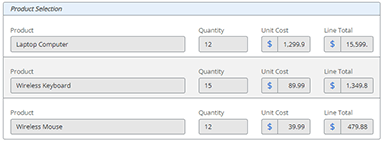
This blog post will show you how to effectively display repeating section data in a task form in your workflows. One of the many great features in a Nintex Automation Cloud (NAC) form is the Repeating Section control. Form designers have the ability to add a dynamic section of repeating rows to collect input data.... Continue Reading →
Allow Only Numeric Value Input in a Nintex Automation Cloud (NAC) Form
Validating data in a form is a crucial part of data collection in an automation process. You can configure a text field on a form to only accept numeric values as input. This configuration also will not allow text (alphabetic) or special characters to be entered in the form field. This post will show you... Continue Reading →
Create a Unique Item ID in a SharePoint Online List with Nintex Automation Cloud (NAC)
I cannot tell you how many times that I have seen a new item created in SharePoint list with the default Title field empty. You have probably seen this too if you have been working with SharePoint for any length of time. You go to a list view and all the items have an empty... Continue Reading →
Allow Only Text Character Input in a Nintex Automation Cloud (NAC) Form
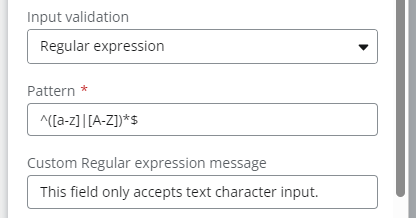
Validating data in a form is a crucial part of data collection in an automation process. You can configure a text field on a form to only accept text (alphabet) characters input. This configuration also will not allow number or special characters to be entered in the form field. This post will show you how... Continue Reading →
Regular Expression to Get the First Digit Before a Decimal Point in a Nintex Automation Cloud (NAC) Workflow
Using the "Apply a Regular Expression" action in Nintex Automation Cloud (NAC) workflow, you can get the first digit (ones digit) before a decimal point. Here are the steps to follow: Insert an "Apply a Regular Expression" action into your workflow. Configure it with the following settings: Input text = Number from a workflow variable... Continue Reading →
Nintex Community Spotlight User for November 2023
I am truly honored to be chosen as the Nintex Community User Spotlight for November 2023. Nintex has created a range of user spotlight blogs to get to know and show appreciation for their most active Community users. I have been a member of the Nintex Community site since 2014 and have learned so much... Continue Reading →
Time Range Validation in Nintex Forms (Classic Designer)
In this scenario, we need to ensure that a form user can only select an appointment time during our business hours (for example, between 7:00 AM and 7:00 PM). On the Nintex form, we have a Date/Time control named AppointmentTime. If the user selects an appointment time outside of business hours, then the form will... Continue Reading →